

Welcome to Mars Patrol
This page is the landing page for Mars Patrol, a Windows arcade game published by Nevonix LLC. Use this page for installation notes, product instructions, license terms, and support contact information.
Before you install
Download Mars Patrol only from Nevonix LLC or an authorized software store, and confirm that the installer shows Nevonix LLC as the verified publisher.
After installation
Launch Mars Patrol from the Start menu or the installed application folder, then follow the gameplay and setup instructions provided with the product.
How to use Mars Patrol
How to play
Begin on the Beginner course and travel through every checkpoint from A through Z. Completing point Z finishes the Beginner course and starts the Champion course. Complete checkpoints A through Z again on the Champion course to reach the starship that has landed on Mars and is waiting to take you back to Earth.
Control the buggy's speed and direction, jump when necessary, aim the turret, and fire as you work through each course.
Press Tab to open the Settings screen. Press Tab again to leave Settings and return to the game. The screen below lists the commands used during play and the keys used to change the game configuration.
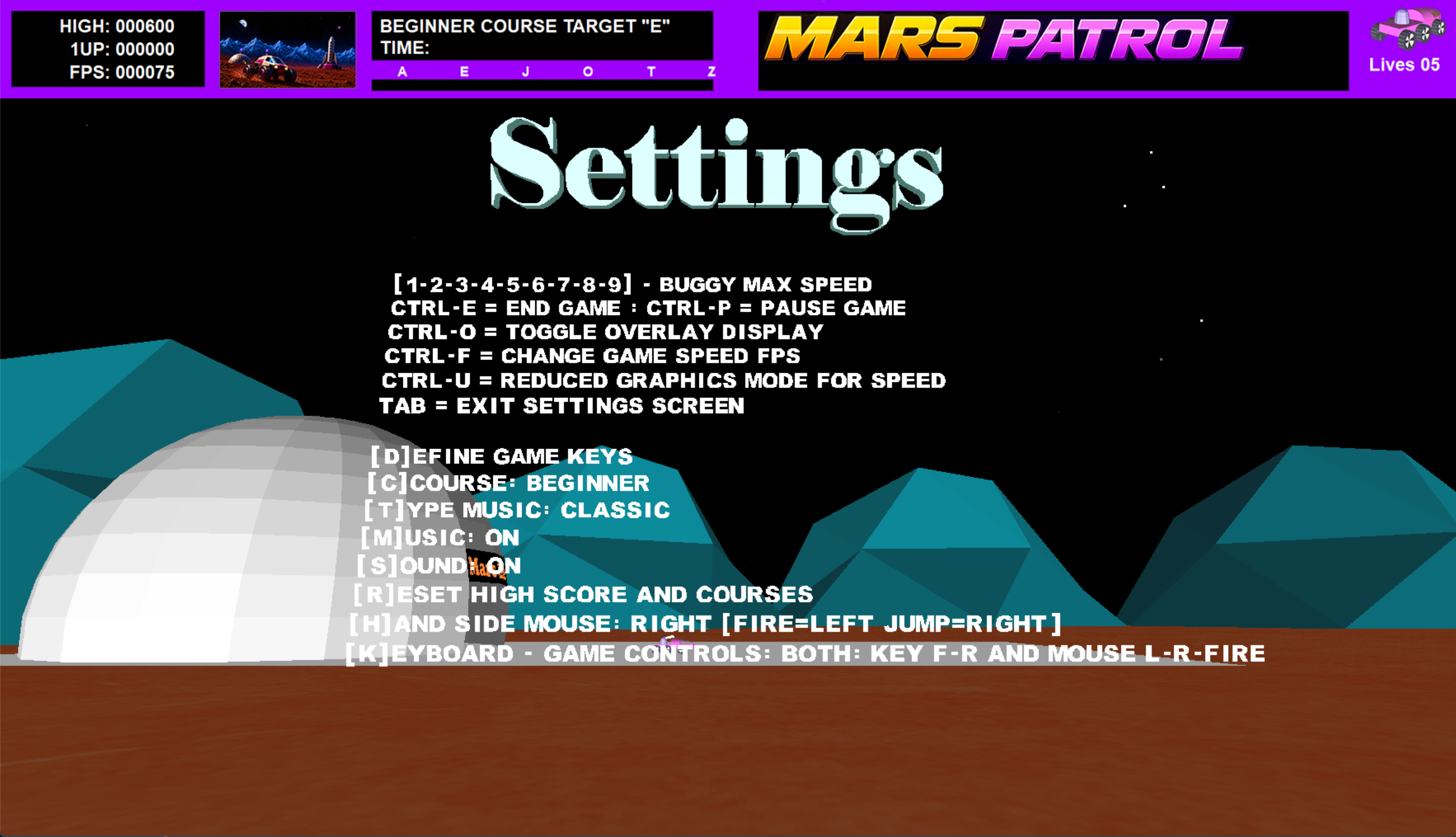
Mars Patrol Settings screen
Commands during the game
- 1–9 sets the buggy's maximum forward speed.
- Ctrl E ends the current game.
- Ctrl P pauses or resumes the game.
- Ctrl O toggles the overlay or overhead display.
- Ctrl F changes the game speed in frames per second.
- Ctrl U enables reduced graphics mode for better performance on a slower computer.
- Tab enters or exits the Settings screen.
Settings options
- D defines the game keys. Mars Patrol prompts you for each key assignment.
- C switches the selected course between Beginner and Champion.
- T switches the music style between Classic and Modern.
- M turns the background music on or off.
- S turns all game sound on or off.
- R resets the high score and saved course progress.
- H switches between right-handed and left-handed mouse layouts.
- K switches the control mode among Keyboard, Mouse, and Both.
Keyboard mode
- A increases buggy speed by default.
- Z decreases buggy speed by default.
- The assigned keyboard keys control the buggy and its actions.
- The mouse still moves the turret up and down, but it does not steer the buggy or perform the other controls.
Keyboard-only mode is precise, but it can be a little harder to use for controlling the buggy.
Mouse mode
- Move the mouse left and right to steer the buggy.
- Move the mouse to aim the turret, including moving it up and down.
- Move the mouse forward and backward to control forward speed.
- The number keys 1–9 still set the maximum forward speed.
- With the right-handed layout, the left mouse button fires and the right mouse button jumps.
- Press H to select the left-handed mouse layout.
- Reverse is not available in Mouse mode.
Both mode
Both mode combines the keyboard and mouse controls. You can use the keyboard for speed and assigned commands while using the mouse for steering, turret control, firing, and jumping.
This is generally the easiest and most flexible way to control the buggy.
Mouse button layout
The handedness setting changes the mouse-button layout. In the right-handed layout, the left mouse button fires and the right mouse button jumps. Press H to switch to the left-handed arrangement.
License terms
Mars Patrol is licensed software provided by Nevonix LLC. Review the license terms before installing or using the software.
Contact
For support or questions about Mars Patrol, contact Nevonix LLC at support@nevonix.ai.
Website: https://nevonix.ai/apps/Mars_Patrol